Terms change. A co-op moves its day, a child outgrows a block, life happens in the middle of October. Editing a term in Studio Mode is designed for exactly that: you adjust the plan, and the lessons move — the work already done, the grades already recorded, and the changes you made by hand all stay exactly where you left them.
Open the term in Studio Mode and choose Edit term. Everything below happens there.
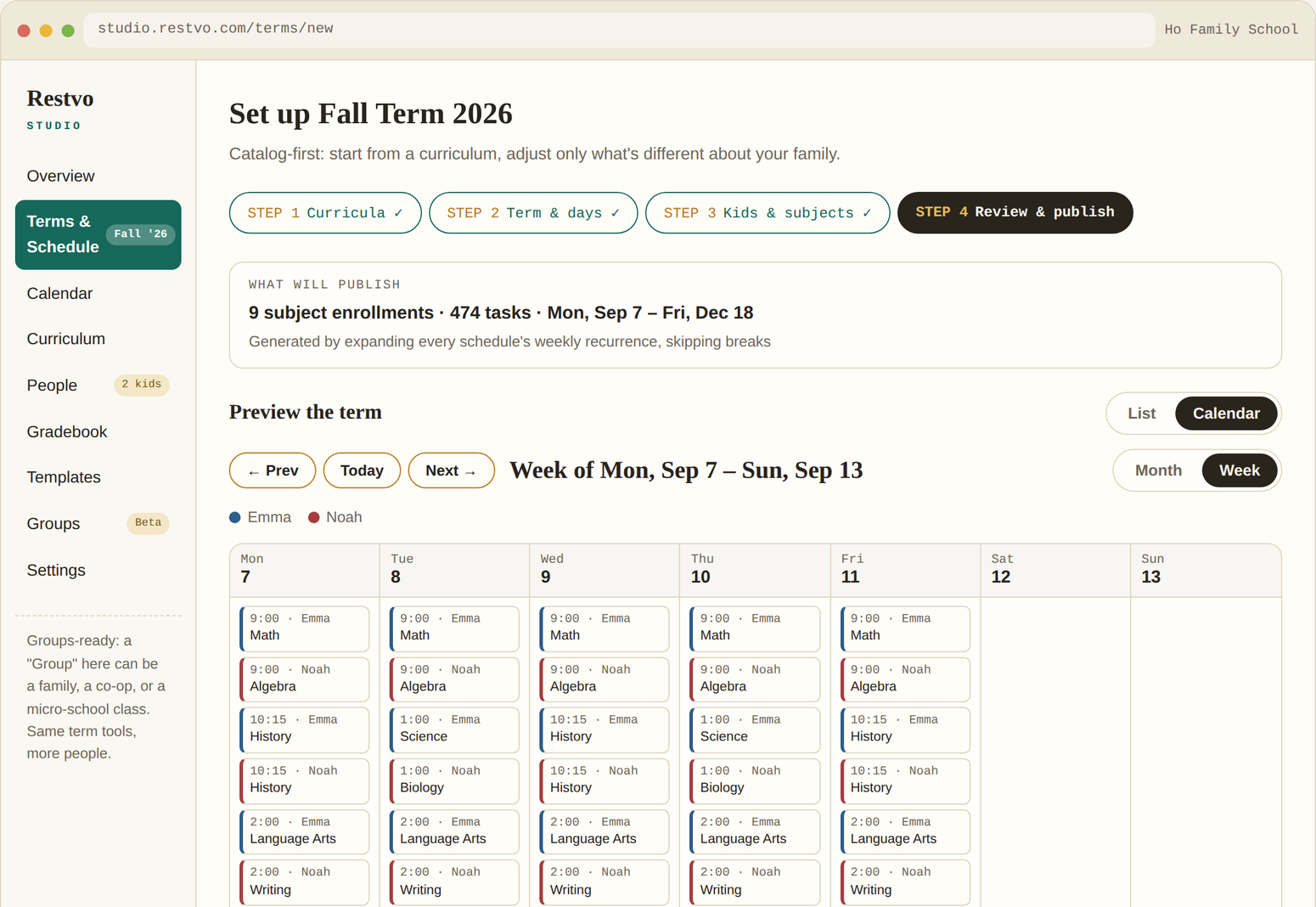
Changing a block's time
Move a subject's block — a new start time, different days, a longer or shorter session — and its lessons re-time in place. This is the important part: a time edit is not a re-plan. The term is not regenerated, lessons are not deleted and recreated, and the one-off moves you made by hand (the lesson you shifted for a field trip, the day you swapped for a dentist appointment) survive the edit untouched.
The same is true for the flexible blocks: changing the time of an ELA or Writing block re-times those lessons in place too, whether the block sits in its default afternoon slot or a morning one.
Adding or removing a subject
Add a subject mid-term and its lessons join the calendar from the week you choose — earlier weeks are not back-filled. Remove a subject and its future lessons leave the calendar; its completed lessons and grades stay in the record, because they happened.
Breaks and one-off changes
- Break weeks — add a week off and the lessons flow around it; the term's end date moves if it needs to.
- Moving one lesson — drag a single lesson to another date. That files a decision card, in plain words: keep it where it is, or propose another day. Whoever it affects can see exactly what is being decided.
- Moving a plan forward — behind schedule? Moving a whole plan forward files a simple information card with a single OK. No decisions to weigh; the plan just breathes.
What editing never does
- It never deletes completed work or recorded grades.
- It never re-issues or changes a child's login.
- It never silently re-plans around your hand-made changes — if an edit truly conflicts with one, Studio Mode says so and asks, rather than guessing.
Coming from setup? If you have not created the term yet, start with Setting Up Terms. Editing assumes a published term; the wizard is where terms are born.